

Table of contents
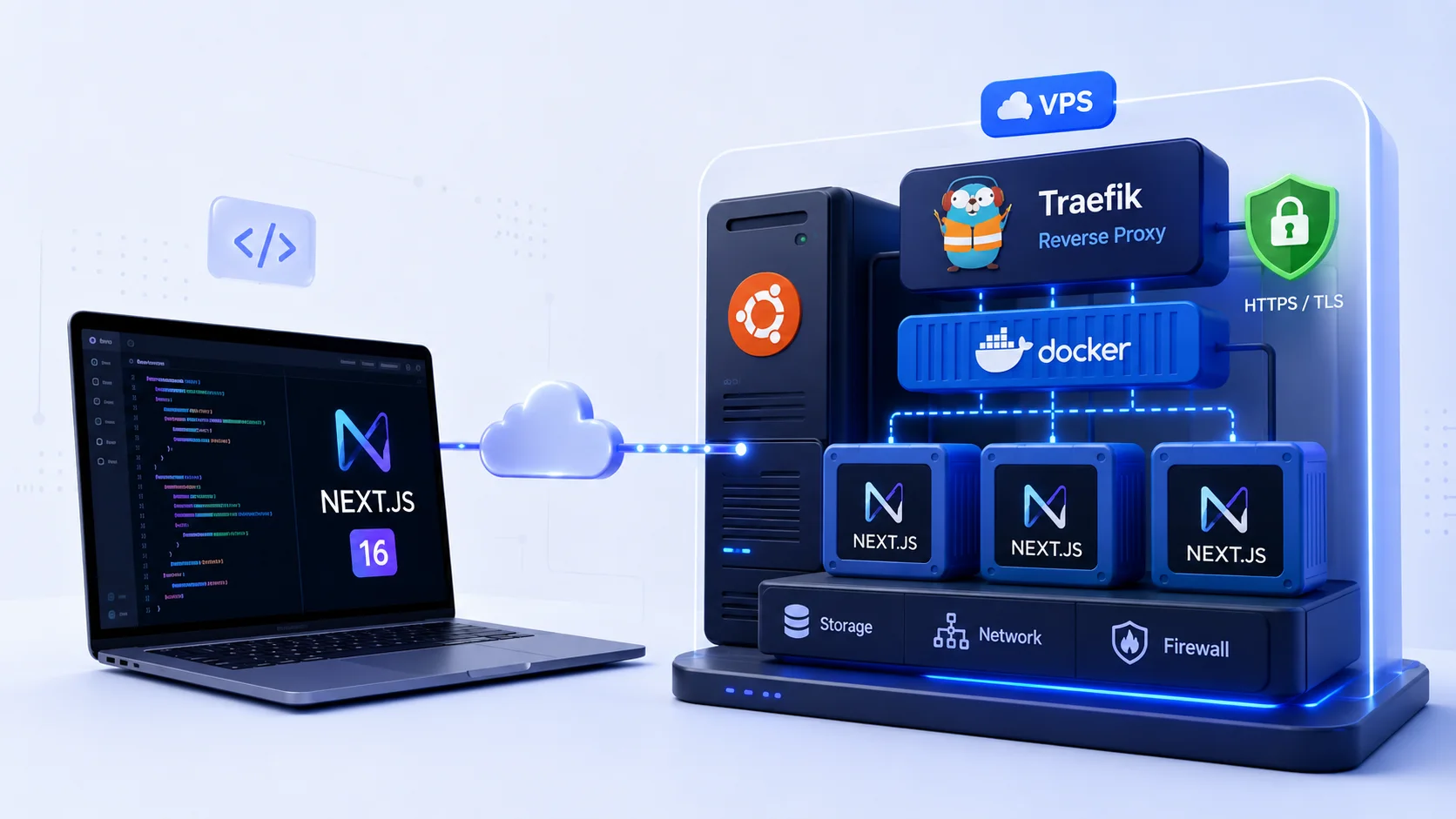
In this tutorial, we will deploy a production Next.js 16 application to a Hostinger VPS using Docker, Docker Compose, Traefik, and Let’s Encrypt. The application will run as an unprivileged container, port 3000 will remain private, and Traefik will expose only HTTP and HTTPS.
The examples use yourdomain.com, YOUR_SERVER_IP, and you@example.com as placeholders. Replace all three before starting the stack. Commands that change the server are explained so you can adapt them instead of copying blindly.
What you will configure
A small, understandable production stack with one public gateway.
- Ubuntu VPS
- Next.js 16 app
- Docker Engine
- Docker Compose
- Traefik proxy
- Domain DNS
- HTTPS redirect
- Let’s Encrypt
Deployment architecture
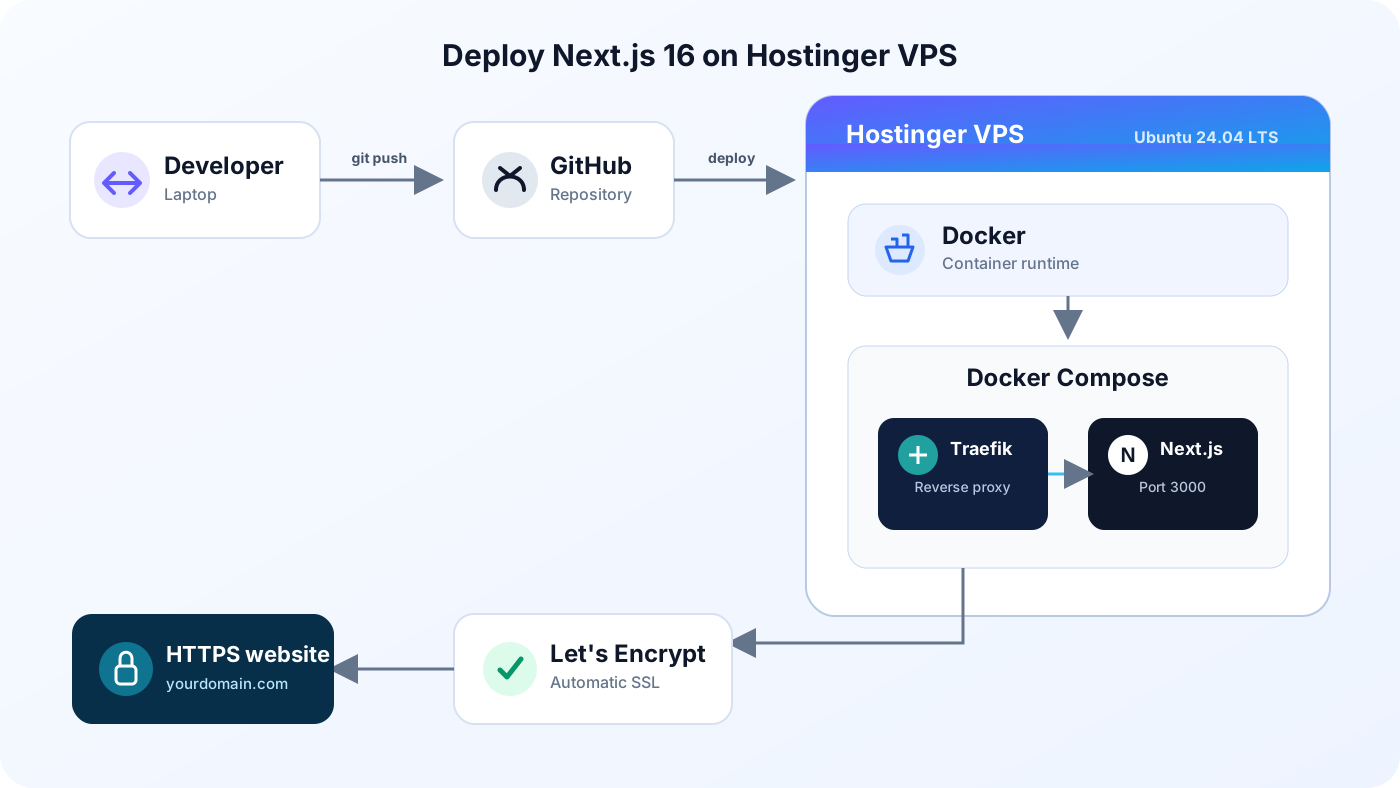
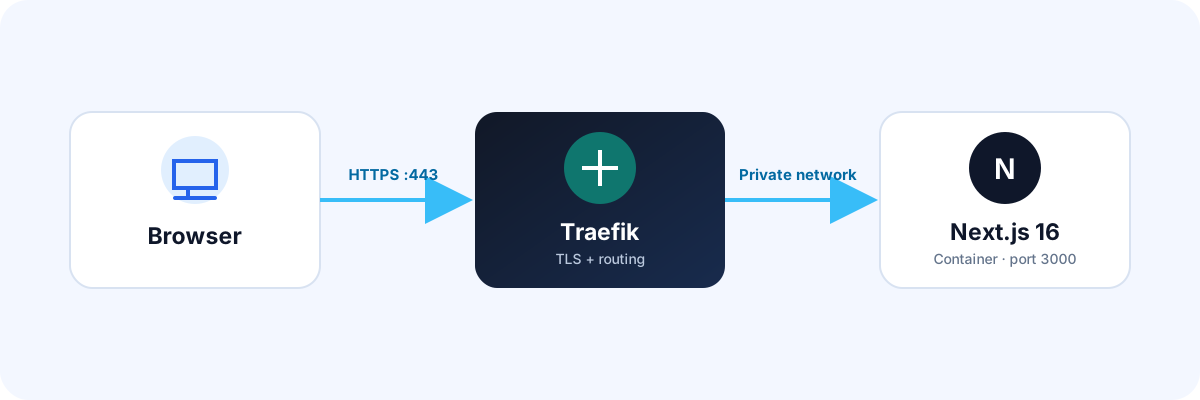
Your developer computer pushes source code to GitHub. The VPS pulls the project—or, in a more mature pipeline, a prebuilt immutable image—and Docker Compose starts Traefik and Next.js on a shared private network. Public requests terminate at Traefik. The proxy selects the app by hostname and forwards traffic to port 3000 without publishing that port on the host.
Requirements
Prepare the accounts, access, and project before provisioning infrastructure. You should be able to run npm run build locally; a VPS will not repair a failing application build.
- A Hostinger VPS
- A domain you control
- A GitHub account
- A Next.js 16 project
- Basic terminal knowledge
- SSH access
Step 1: Create the Hostinger VPS
Provision a VPS from the Hostinger control panel and choose Ubuntu 24.04 LTS. Select a region close to your users and any external database. Record the public IPv4 address, then apply available system updates before installing application software.
Start with a plan that leaves headroom for both next build and runtime traffic. Build processes can use much more memory than an idle Node.js server. If the smallest plan cannot build reliably, build in CI and pull the resulting image instead of adding unsafe amounts of swap or repeatedly retrying.
Replace with an owned dashboard screenshot after hiding the server IP, account name, and billing details.
Disclosure: This article may contain affiliate links. If you purchase through one of these links, I may earn a commission at no additional cost to you.
Step 2: Connect using SSH
ssh root@YOUR_SERVER_IProot is the initial administrative user and YOUR_SERVER_IP is the public address from the control panel. On the first connection, compare the displayed host-key fingerprint with the value provided by your host before accepting it. Authenticate with the temporary password or, preferably, an SSH key.
Step 3: Update Ubuntu
apt update
apt upgrade -y
apt update refreshes the package index; it does not install packages. apt upgrade -y installs available upgrades and accepts normal prompts. If the upgrade installs a new kernel, schedule a reboot and reconnect before continuing. Review production upgrades rather than relying on -y forever.
Step 4: Install Docker safely
Use Docker’s signed Ubuntu repository rather than an unverified convenience script. The following commands add Docker’s official signing key and repository for the current Ubuntu architecture and release.
apt install -y ca-certificates curl
install -m 0755 -d /etc/apt/keyrings
curl -fsSL https://download.docker.com/linux/ubuntu/gpg -o /etc/apt/keyrings/docker.asc
chmod a+r /etc/apt/keyrings/docker.asc
. /etc/os-release
docker_codename="${UBUNTU_CODENAME:-$VERSION_CODENAME}"

printf '%s\n' \
  'Types: deb' \
  'URIs: https://download.docker.com/linux/ubuntu' \
  "Suites: $docker_codename" \
  'Components: stable' \
  "Architectures: $(dpkg --print-architecture)" \
  'Signed-By: /etc/apt/keyrings/docker.asc' \
  > /etc/apt/sources.list.d/docker.sources

apt update
apt install -y docker-ce docker-ce-cli containerd.io docker-buildx-plugin docker-compose-plugin
Confirm that both the engine and Compose plugin are available:
docker --version
docker compose version
systemctl is-active docker
Membership in the docker group is effectively root-level access because the daemon can mount host paths and start privileged containers. Do not grant it casually; using sudo docker from a restricted administrator is a reasonable default.
Step 5: Prepare the Next.js application
In your project, verify that package.json contains working build and start scripts. Commit the lockfile that belongs to your package manager and test the exact production build locally.
"scripts": {
  "build": "next build",
  "start": "next start"
}npm ci
npm run build
npm run startFor a compact container runtime, enable Next.js standalone output. It traces the server files and packages required by the application into .next/standalone.
import type { NextConfig } from 'next'

const nextConfig: NextConfig = {
  output: 'standalone',
}

export default nextConfigStep 6: Create a production Dockerfile
This multi-stage image installs locked dependencies, builds the app, then copies only the standalone runtime and static assets into a clean final stage. The service runs as the predefined unprivileged node user.
# syntax=docker/dockerfile:1
FROM node:24-alpine AS deps
WORKDIR /app
COPY package.json package-lock.json ./
RUN npm ci

FROM node:24-alpine AS builder
WORKDIR /app
ENV NEXT_TELEMETRY_DISABLED=1
COPY --from=deps /app/node_modules ./node_modules
COPY . .
RUN npm run build

FROM node:24-alpine AS runner
WORKDIR /app
ENV NODE_ENV=production
ENV NEXT_TELEMETRY_DISABLED=1
ENV PORT=3000
ENV HOSTNAME=0.0.0.0
COPY --from=builder --chown=node:node /app/public ./public
COPY --from=builder --chown=node:node /app/.next/standalone ./
COPY --from=builder --chown=node:node /app/.next/static ./.next/static
USER node
EXPOSE 3000
CMD ["node", "server.js"]
The deps stage creates a cacheable dependency layer. The builder contains source and toolchain. The runner receives only traced server output, public files, and static chunks. Pin and regularly update the Node base image; mature pipelines should pin a tested digest and automate review of updates.
Step 7: Reduce the Docker build context
node_modules
.next
.git
.env
.env.local
README.md
*.log
A .dockerignore prevents local dependencies, previous builds, Git history, and secrets from being sent to the Docker daemon. Keep a sanitized .env.example in source control if contributors need a variable template.
Step 8: Create Docker Compose
Create a deployment directory on the VPS, clone the project into it, and add this compose.yaml. Only Traefik publishes host ports. The app exposes port 3000 to the internal proxy network without making it reachable from the public internet.
services:
  traefik:
    image: traefik:v3.7.8
    restart: unless-stopped
    security_opt:
      - no-new-privileges:true
    ports:
      - "80:80"
      - "443:443"
    volumes:
      - /var/run/docker.sock:/var/run/docker.sock:ro
      - ./traefik.yml:/etc/traefik/traefik.yml:ro
      - ./letsencrypt:/letsencrypt
    networks:
      - proxy

  nextjs:
    build:
      context: .
    restart: unless-stopped
    env_file:
      - .env.production
    expose:
      - "3000"
    labels:
      - traefik.enable=true
      - traefik.http.routers.nextjs.rule=Host(`yourdomain.com`) || Host(`www.yourdomain.com`)
      - traefik.http.routers.nextjs.entrypoints=websecure
      - traefik.http.routers.nextjs.tls.certresolver=letsencrypt
      - traefik.http.services.nextjs.loadbalancer.server.port=3000
    networks:
      - proxy

networks:
  proxy:
name: proxyStep 9: Configure Traefik and Let’s Encrypt
Traefik watches Docker metadata, creates a router from the labels, redirects plain HTTP to HTTPS, and uses the ACME HTTP challenge to request certificates. The Docker provider is configured with exposedByDefault: false so an unlabeled container is not published accidentally.
api:
  dashboard: false

entryPoints:
  web:
    address: ':80'
    http:
      redirections:
        entryPoint:
          to: websecure
          scheme: https
          permanent: true
  websecure:
    address: ':443'

providers:
  docker:
    exposedByDefault: false
    network: proxy

certificatesResolvers:
  letsencrypt:
    acme:
      email: you@example.com
      storage: /letsencrypt/acme.json
      httpChallenge:
        entryPoint: web

log:
  level: INFO
Prepare the persistent certificate directory before starting:
mkdir -p letsencrypt
touch letsencrypt/acme.json
chmod 600 letsencrypt/acme.json
The read-only Docker socket lets Traefik discover containers, but access to that socket remains security-sensitive. On higher-risk systems, investigate a restricted socket proxy and separate public-edge workloads from unrelated containers.
Step 10: Point the domain to the VPS
At your DNS provider, add an A record for the apex domain and another for www. If your provider permits it, www may instead be a CNAME to the apex. Remove conflicting records and confirm the address from more than one resolver.
Apex domain
Type: A
Name: @
Value: YOUR_SERVER_IP
TTL: Default
www hostname
Type: A
Name: www
Value: YOUR_SERVER_IP
TTL: Default
dig +short yourdomain.com A
dig +short www.yourdomain.com A
DNS caches mean changes are not instant. Let’s Encrypt validation will fail until the public record resolves to this VPS and inbound ports 80 and 443 are reachable.
Step 11: Build and start the containers
Create .env.production on the VPS with only the server-side values your app needs, restrict its permissions, then validate and start the stack.
chmod 600 .env.production
docker compose config
docker compose build --pull
docker compose up -d
docker compose ps
docker compose config catches YAML and interpolation errors. build --pull refreshes the referenced base image, up -d reconciles services in the background, and ps shows their current state.
Read the logs
docker compose logs -f --tail=100
# Or follow one service
docker compose logs -f nextjs
Press Ctrl + C to stop following logs; that does not stop the containers. Avoid dumping environment values into logs, and configure rotation so container logs cannot fill the disk.
Step 12: Confirm HTTPS
After DNS resolves, request https://yourdomain.com. Traefik should complete the ACME challenge on port 80, store the certificate in acme.json, and serve the site on port 443. Renewal is automatic while the resolver remains configured and the storage file persists.
Step 13: Verify the deployment
Test more than the home page. A successful response can still hide broken chunks, image routes, callbacks, or API handlers.
- HTTPS returns 200
- HTTP redirects to HTTPS
- Certificate matches domain
- Next.js chunks load
- Images render correctly
- API routes respond
curl -I http://yourdomain.com
curl -I https://yourdomain.com
curl -fsS https://yourdomain.com >/dev/null && echo 'Homepage OK'
Open browser developer tools and check the Network and Console panels. Verify a hard refresh, dynamic routes, forms, authentication callbacks, Server Actions, and any optimized images. Run an external TLS test after the certificate is issued.
Common deployment errors
502 Bad Gateway
- Symptoms
- Traefik answers, but the page shows 502.
- Likely cause
- The app is stopped, the service port is wrong, or the containers do not share the proxy network.
- Solution
- Run
docker compose ps, inspect both logs, confirm the label targets port 3000, and inspect theproxynetwork.
Container keeps restarting
- Symptoms
- The Next.js service repeatedly changes from starting to restarting.
- Likely cause
- The production build is incomplete, a required runtime variable is absent, or the startup command exits.
- Solution
- Read the app logs, run the image interactively if needed, confirm standalone files exist, and supply required server variables without printing secrets.
SSL certificate is not generated
- Symptoms
- The browser sees a default certificate or TLS error.
- Likely cause
- DNS points elsewhere, port 80 is blocked, the email or resolver label is wrong, or
acme.jsonis not writable. - Solution
- Confirm public DNS, firewall rules, router labels, resolver name, and file mode. Then inspect Traefik logs for the precise ACME response.
Traefik router is not detected
- Symptoms
- Traefik starts but no router exists for the app.
- Likely cause
- Docker discovery is unavailable,
traefik.enableis missing, YAML changed labels, or the service is on another network. - Solution
- Validate Compose, check the read-only socket mount, inspect container labels, and put both services on the named proxy network.
Environment variables are missing
- Symptoms
- The app crashes or integrations fail after deployment.
- Likely cause
- A variable existed in the local shell but was not supplied to the container, or a public value changed after build.
- Solution
- Define server values in the protected runtime env file. Rebuild whenever a
NEXT_PUBLIC_value changes.
Build fails because of memory
- Symptoms
- The build exits with code 137 or the host becomes unresponsive.
- Likely cause
- The kernel killed the process under memory pressure.
- Solution
- Check system and Docker memory, stop unrelated workloads, resize the VPS, or build an immutable image in CI and pull it on the server.
For image failures, verify that standalone output includes public and .next/static, the source hostname is allowed by images.remotePatterns, and the runtime has enough memory for optimization. For slow DNS, query authoritative nameservers and wait for cached TTLs instead of repeatedly recreating certificates.
Security recommendations
Harden SSH
Use keys, a named sudo user, and tested recovery access. Disable password and direct root login only after verifying key authentication in a second session.
Restrict the firewall
Allow SSH from trusted sources where practical, plus public TCP 80 and 443. Do not expose databases or the Next.js port.
Protect secrets
Keep runtime secrets outside Git and images. Restrict file permissions, rotate credentials, and never expose server secrets with NEXT_PUBLIC_.
Patch and back up
Apply security updates, review container updates, snapshot configuration, test restores, and monitor disk, memory, uptime, and certificate renewal.
The non-root application user limits damage inside the container, but it does not make the host invulnerable. Avoid privileged containers, unnecessary capabilities, writable host mounts, and public Docker daemon access. Consider automatic security updates after testing your reboot and maintenance process.
Back up application configuration, the protected environment file, databases, persistent volumes, and any data that cannot be rebuilt. The Traefik ACME file is convenient to preserve, but certificates can be reissued; take care not to restore stale certificates across unrelated hosts. Encrypt off-server backups and test a restore regularly.
Performance and updates
Standalone output reduces the runtime image, while a lockfile-first Dockerfile improves layer reuse. Keep image optimization available only when the VPS has sufficient CPU and memory, or use a dedicated image service/CDN. Add caching headers for hashed static assets, enable compression at one appropriate layer, and measure real user performance before adding infrastructure.
Monitor CPU, memory, disk, container restarts, response latency, error rate, and certificate expiry. A CDN can reduce latency and origin traffic for cacheable assets, but it does not compensate for slow server rendering or an undersized database.
Update the application
git pull --ff-only
docker compose build --pull
docker compose up -d
docker compose ps
This simple workflow briefly replaces the running container and is appropriate only when that trade-off is acceptable. Safer deployments build once in CI, tag the image with a commit SHA, scan and push it to a registry, pull that exact image on the VPS, run health checks, and retain the previous tag for rollback. Plan backward-compatible database migrations separately.