


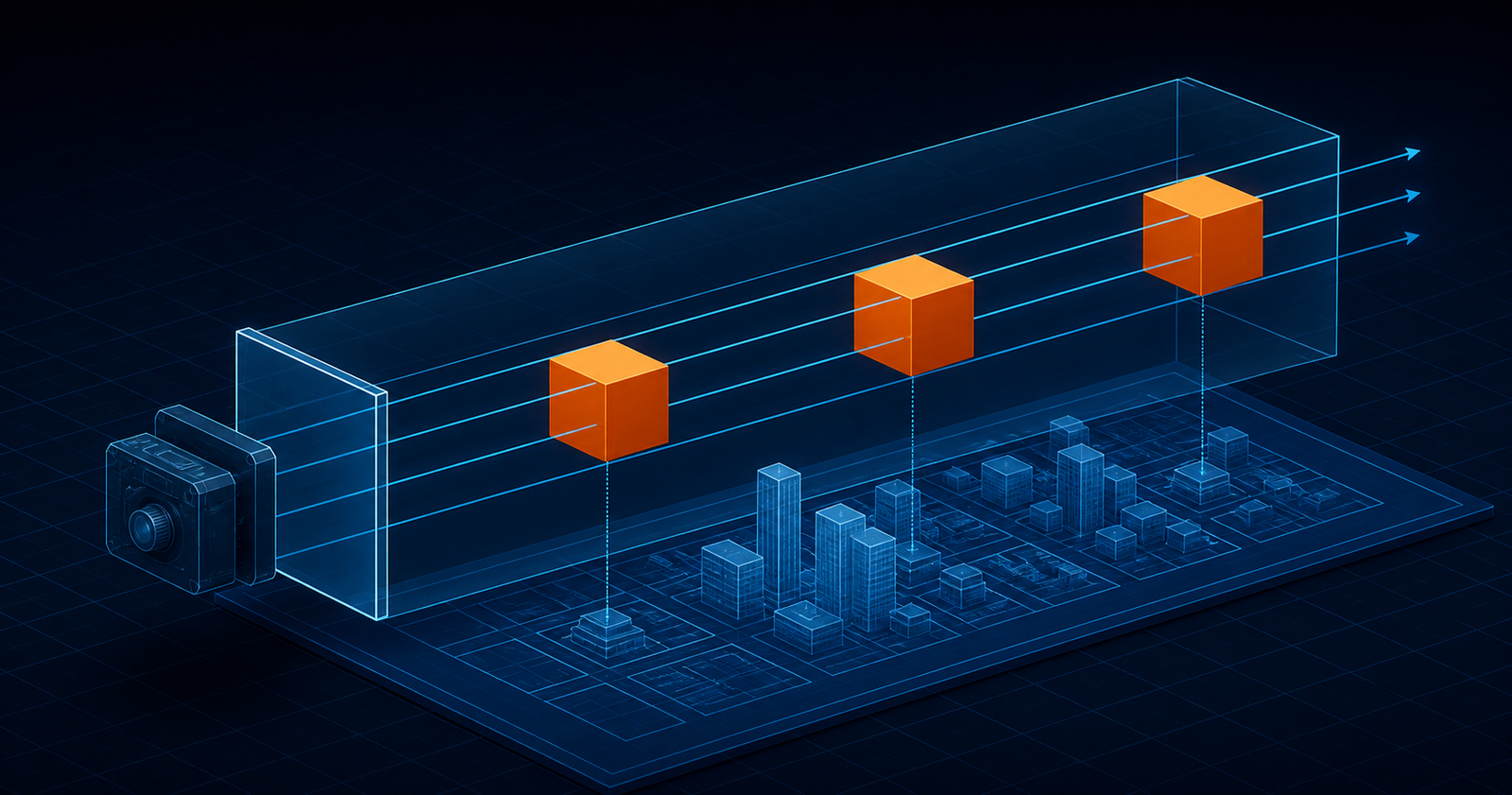
An orthographic camera shows 3D space without perspective scaling. A cube far from the camera appears the same size as an identical cube close to it. Parallel lines stay parallel, measurements remain visually consistent, and the result feels more like a blueprint, map, or technical drawing than a photograph.
That makes THREE.OrthographicCamera ideal for 2D and isometric games, map views, CAD-style tools, data visualization, user-interface overlays, and any scene where scale matters more than realistic depth.
1. How orthographic projection works
Perspective
Projection rays converge. Distant objects appear smaller.
Orthographic
Projection rays stay parallel. Size does not change with distance.
Orthographic projection removes perspective size reduction, but the scene is still three-dimensional. Objects can overlap, rotate, move behind one another, receive lighting, and be clipped by the near and far planes. Depth still affects visibility and rendering order; it simply does not change apparent size.
2. When to use OrthographicCamera
| Use case | Why it fits | Typical view |
|---|---|---|
| Maps | Stable scale and readable top-down layout | Top-down or angled |
| 2D games | No unwanted perspective distortion | Side or top-down |
| Isometric games | Parallel edges and model-like composition | Angled from above |
| Blueprints and editors | Measurements remain visually consistent | Front, side, or top |
| UI and HUD layers | Elements keep predictable screen size | Camera-facing |
| Data visualization | Depth does not exaggerate values | Flat or isometric |
Use a PerspectiveCamera when realistic depth is part of the experience. Use an orthographic camera when comparison, layout, or controlled scale is the priority.
3. Create an OrthographicCamera
The constructor has six boundaries: left, right, top, bottom, near, and far. Together they define the camera's rectangular viewing volume.
const viewSize = 4
const aspect = window.innerWidth / window.innerHeight

const camera = new THREE.OrthographicCamera(
  (-viewSize * aspect) / 2, // left
  (viewSize * aspect) / 2,  // right
  viewSize / 2,             // top
  -viewSize / 2,            // bottom
  0.1,                      // near
  100                       // far
)

camera.position.z = 5
This setup always shows four world units vertically. The visible horizontal width expands or contracts with the screen aspect ratio, preventing the scene from stretching.
4. Understand left, right, top, and bottom
The first four values define a rectangle in camera space. Content inside that rectangle can be visible; content beyond its edges is cropped.
leftandrightcontrol horizontal coverage.topandbottomcontrol vertical coverage.- A symmetric camera uses matching negative and positive boundaries around zero.
- A wider numeric range shows more of the world, making objects appear smaller.
- A narrower range shows less of the world, making objects appear larger.
On a 16:9 screen with a four-unit vertical view, the aspect is approximately 1.78. The horizontal range becomes about -3.56 to +3.56, giving a total width near 7.12 world units and preserving the screen's proportions.
5. Near and far clipping planes
The final two values limit visible depth. Objects closer than the near plane or beyond the far plane are clipped. Keep the range only as large as the scene needs to preserve useful depth precision.
const camera = new THREE.OrthographicCamera(
  left,
  right,
  top,
  bottom,
  0.1,  // near
  100   // far
)0 as its near value. A small positive value such as 0.1 is still a clear general-purpose starting point.6. Position and aim the camera
A flat projection does not remove the need to position the camera. Place it away from the subject and point it at the part of the scene you want to frame.
camera.position.set(0, 0, 5)
camera.lookAt(0, 0, 0)
For top-down content, move the camera above the scene. Because a camera's default up direction is positive y, set a different up vector when looking directly down to keep orientation predictable:
camera.position.set(0, 10, 0)
camera.up.set(0, 0, -1)
camera.lookAt(0, 0, 0)
7. Make the orthographic camera responsive
A PerspectiveCamera usually updates one aspect property. An OrthographicCamera instead needs new left and right boundaries—or all four boundaries—when the canvas changes shape.
const viewSize = 4

function resizeScene() {
  const width = window.innerWidth
  const height = window.innerHeight
  const aspect = width / height

  camera.left = (-viewSize * aspect) / 2
  camera.right = (viewSize * aspect) / 2
  camera.top = viewSize / 2
  camera.bottom = -viewSize / 2
  camera.updateProjectionMatrix()

  renderer.setSize(width, height)
  renderer.setPixelRatio(Math.min(window.devicePixelRatio, 2))
}

window.addEventListener('resize', resizeScene)
resizeScene()
updateProjectionMatrix() is essential after modifying the camera boundaries. Without it, the stored values change but the rendered projection remains unchanged.
8. Zoom without moving the camera
The zoom property changes how much of the orthographic box fills the output. This is often more convenient than recalculating all four boundaries for user-controlled zoom.
camera.zoom = 1.5
camera.updateProjectionMatrix()

function setZoom(nextZoom) {
  camera.zoom = THREE.MathUtils.clamp(nextZoom, 0.5, 4)
  camera.updateProjectionMatrix()
}
A value greater than 1 zooms in; a value between 0 and 1 zooms out. Clamp interactive zoom to sensible limits so the scene cannot disappear or become impractically large.
9. Create a pixel-based camera
For sprite editors, screen-space overlays, and other pixel-oriented scenes, define one world unit as one CSS pixel. Centering the boundaries around zero places the world origin at the screen center.
function updatePixelCamera() {
  const width = renderer.domElement.clientWidth
  const height = renderer.domElement.clientHeight

  camera.left = width / -2
  camera.right = width / 2
  camera.top = height / 2
  camera.bottom = height / -2
  camera.updateProjectionMatrix()
}
If the origin should be at the top-left instead, use left = 0, right = width, top = 0, and bottom = height, then account for the direction of the vertical axis in your object positions.
10. Build an isometric-style view
An isometric-style composition uses an angled orthographic camera. Equal values on x, y, and z produce a balanced view of three axes; lookAt() keeps the origin centered.
camera.position.set(10, 10, 10)
camera.lookAt(0, 0, 0)

// Optional: rotate the world or camera for art-direction adjustments
camera.zoom = 1.25
camera.updateProjectionMatrix()
Orthographic projection gives the familiar strategy-game or architectural-model appearance, but technically perfect isometric projection also depends on the camera orientation and the relationship between the projected axes. Adjust the position for the composition your project needs.
11. Complete working example
The following example assumes the scene, renderer, and canvas setup from Your First Three.js Scene.
import * as THREE from 'three'

const canvas = document.querySelector('.world')
const scene = new THREE.Scene()
scene.background = new THREE.Color(0x07111f)

const viewSize = 5
const aspect = window.innerWidth / window.innerHeight
const camera = new THREE.OrthographicCamera(
  (-viewSize * aspect) / 2,
  (viewSize * aspect) / 2,
  viewSize / 2,
  -viewSize / 2,
  0.1,
  100
)
camera.position.set(6, 6, 6)
camera.lookAt(0, 0, 0)

const renderer = new THREE.WebGLRenderer({ canvas, antialias: true })

const geometry = new THREE.BoxGeometry(1, 1, 1)
const material = new THREE.MeshNormalMaterial()
const cube = new THREE.Mesh(geometry, material)
scene.add(cube)

function resizeScene() {
  const width = window.innerWidth
  const height = window.innerHeight
  const nextAspect = width / height

  camera.left = (-viewSize * nextAspect) / 2
  camera.right = (viewSize * nextAspect) / 2
  camera.top = viewSize / 2
  camera.bottom = -viewSize / 2
  camera.updateProjectionMatrix()

  renderer.setSize(width, height)
  renderer.setPixelRatio(Math.min(window.devicePixelRatio, 2))
}

window.addEventListener('resize', resizeScene)
resizeScene()

renderer.setAnimationLoop(() => {
  cube.rotation.y += 0.01
  renderer.render(scene, camera)
})
12. PerspectiveCamera vs OrthographicCamera
| Feature | PerspectiveCamera | OrthographicCamera |
|---|---|---|
| Apparent size with distance | Decreases | Stays constant |
| Viewing volume | Truncated pyramid | Rectangular box |
| Main framing controls | FOV and aspect | Left, right, top, bottom, zoom |
| Realistic depth | Yes | No perspective scaling |
| Common uses | Games, product views, cinematic scenes | Maps, editors, 2D and isometric views |
| Responsive update | Change aspect | Change frustum boundaries |
13. Common mistakes and fixes
| Problem | Fix |
|---|---|
| Objects look stretched | Calculate horizontal boundaries from the canvas aspect ratio. |
| Resize code has no visual effect | Call camera.updateProjectionMatrix() after changing camera properties. |
| Nothing is visible | Place the camera outside the object, aim it correctly, and check the clipping range. |
| The view is too close or too far | Adjust camera.zoom or the frustum boundary range. |
| Top-down view rotates unexpectedly | Set a suitable camera.up vector before calling lookAt(). |
| UI scale changes across screens | Choose intentionally between a fixed world-unit height and pixel-based boundaries. |
14. Quick reference
| Property | Purpose | Remember |
|---|---|---|
left / right | Horizontal visible range | Usually derived from aspect ratio |
top / bottom | Vertical visible range | Can define a fixed world height |
near / far | Visible depth range | near may be zero for this camera |
zoom | Magnifies the view | Call updateProjectionMatrix() |
position | Moves the viewpoint | Does not change perspective scale |
lookAt() | Aims at a target | Useful for top-down and isometric views |
Frequently asked questions
What is an OrthographicCamera in Three.js?
An OrthographicCamera projects a rectangular viewing box without perspective scaling, so an object keeps the same apparent size as its distance from the camera changes.
When should I use an orthographic camera?
It is a strong choice for maps, technical diagrams, 2D and isometric games, editors, user-interface layers, and data visualizations where perspective distortion is undesirable.
How do I zoom an OrthographicCamera?
Change camera.zoom and then call camera.updateProjectionMatrix. Values above 1 zoom in, while values between 0 and 1 zoom out.
Why does my orthographic scene stretch after resizing?
The left and right boundaries must be recalculated for the new canvas aspect ratio, followed by camera.updateProjectionMatrix and a renderer resize.
Can OrthographicCamera create an isometric view?
Yes. Place the camera at equal positive x, y, and z coordinates, aim it at the origin, and use an orthographic projection to create the familiar isometric-style view.
Official references
Choose the projection that serves the scene
OrthographicCamera is not a simplified PerspectiveCamera; it is a different visual tool. Its parallel projection makes scale predictable, its rectangular frustum gives exact framing control, and its zoom property makes maps and editor-like interfaces easy to navigate. Once you understand the six boundaries and update them correctly on resize, flat, top-down, and isometric scenes become straightforward to build.
Planning an interactive 3D interface?
NavTech Solution builds responsive Three.js experiences for product, data, marketing, and storytelling projects.
Discuss your project