


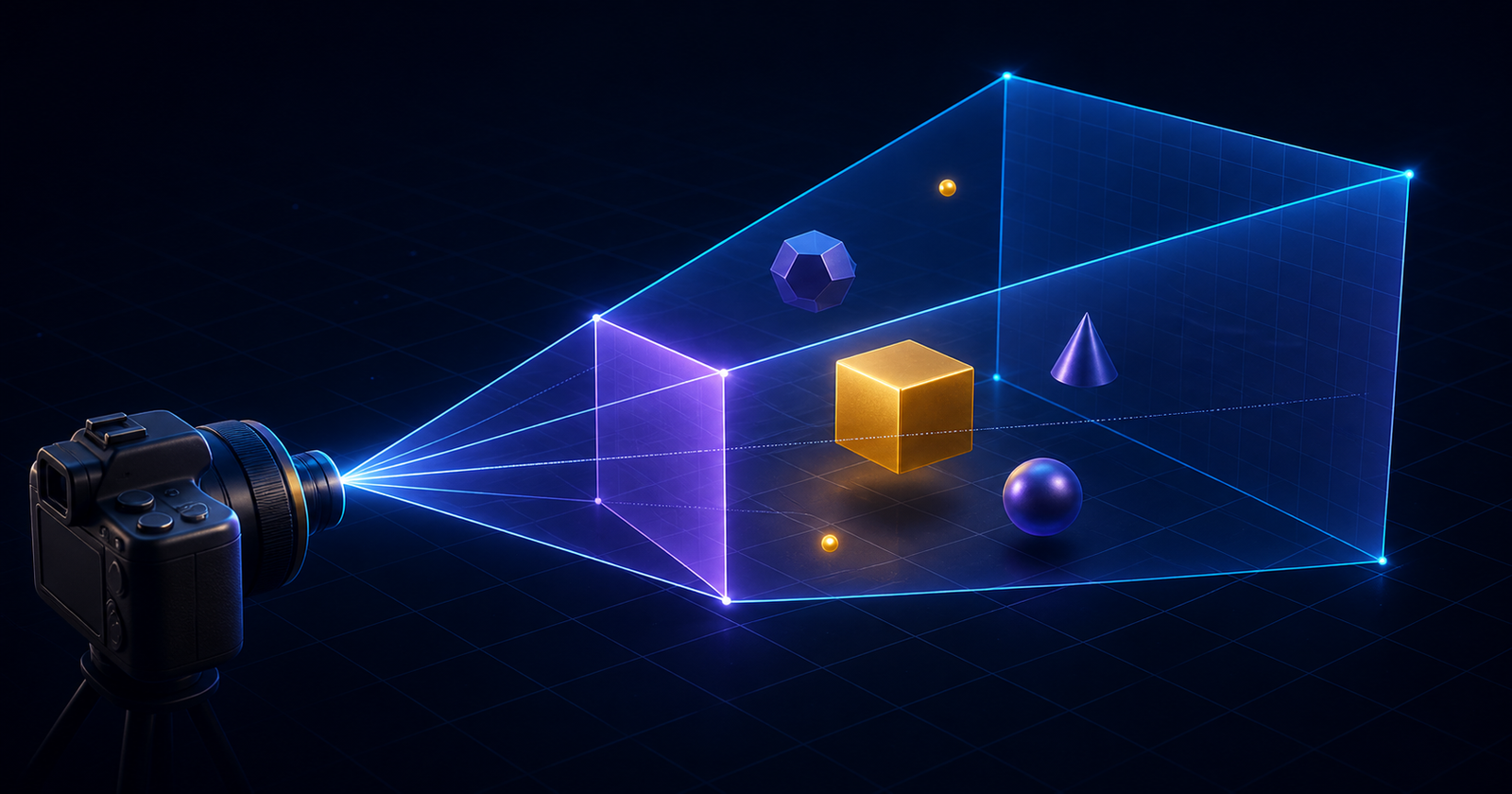
A camera is the viewer's eye inside a Three.js world. The scene may contain perfect lighting, materials, and models, but nothing reaches the canvas until a camera defines the viewpoint and the renderer uses it. For most 3D websites and games, that viewpoint begins with THREE.PerspectiveCamera.
This guide turns the supplied Camera Masterclass course into a structured blog lesson. You will create a camera, understand all four constructor values, make it responsive, position it in 3D space, aim it at a target, and diagnose the most common visibility problems.
new THREE.PerspectiveCamera(75, aspect, 0.1, 1000) and explain exactly what every value does.1. What a camera does in Three.js
The camera does not draw objects and is not normally visible inside the scene. Instead, it creates a projection: it takes the portion of 3D space inside its viewing volume and maps that view onto the renderer's 2D canvas.
Position
Where the viewer stands in 3D space.
Projection
How wide and deep the visible area is.
Direction
Which point the viewer faces.
A perspective camera makes distant objects appear smaller, similar to human vision and a physical camera lens. An orthographic camera keeps an object's apparent size constant regardless of distance, which is useful for maps, diagrams, and some interface-like scenes. This lesson focuses on perspective projection.
2. Create a PerspectiveCamera
The constructor accepts four values in a fixed order: vertical field of view, aspect ratio, near clipping distance, and far clipping distance.
const camera = new THREE.PerspectiveCamera(
  75,                                    // Field of view
  window.innerWidth / window.innerHeight, // Aspect ratio
  0.1,                                   // Near clipping plane
  1000                                   // Far clipping plane
)

camera.position.z = 3
renderer.render(scene, camera)
Moving the camera on the z-axis is important in a typical starter scene. A new camera and a new mesh are often both placed at the origin, so the camera may begin inside the mesh. Moving it to z = 3 creates enough distance to see an object centered at (0, 0, 0).
3. Field of view: how wide the camera sees
Field of view, or FOV, is the camera's vertical viewing angle in degrees. A lower FOV creates a narrow, zoomed-in composition. A higher FOV includes more of the scene but exaggerates perspective near the edges.
| FOV | Visual effect | Possible use |
|---|---|---|
| 30–45° | Narrow and compressed | Product detail or focused shot |
| 50–60° | Natural perspective | General 3D experiences |
| 70–90° | Wide and energetic | Games, rooms, landscapes |
| Above 100° | Strong edge distortion | Stylized or special-purpose views |
Start near 60 or 75, then frame the subject by changing the camera's position. Treat very high FOV values as an intentional effect, not a shortcut for fitting everything into the frame.
const portraitCamera = new THREE.PerspectiveCamera(35, aspect, 0.1, 100)
const generalCamera = new THREE.PerspectiveCamera(60, aspect, 0.1, 100)
const wideCamera = new THREE.PerspectiveCamera(85, aspect, 0.1, 100)
4. Aspect ratio: prevent a stretched scene
The aspect ratio is the width of the canvas divided by its height. It must describe the renderer's actual drawing area. If the ratio is wrong, circles look oval and cubes appear stretched.
function resizeScene() {
  const width = window.innerWidth
  const height = window.innerHeight

  camera.aspect = width / height
  camera.updateProjectionMatrix()

  renderer.setSize(width, height)
  renderer.setPixelRatio(Math.min(window.devicePixelRatio, 2))
}

window.addEventListener('resize', resizeScene)
resizeScene()
Changing camera.aspect only changes the stored property. Calling camera.updateProjectionMatrix() rebuilds the projection so the new value affects rendering. Limiting pixel ratio can also prevent unnecessarily expensive rendering on very dense screens.
5. Near and far clipping planes
The near and far values define the visible depth range. Anything closer than near or farther away than far is clipped and does not appear.
Near clipping plane
A near value of 0.1 is a useful default for many human-scale scenes. Setting it too large makes nearby objects disappear. Setting it extremely close to zero can reduce depth-buffer precision and contribute to flickering surfaces known as z-fighting.
Far clipping plane
The far value should reach the most distant content that must remain visible. A small room may need only 50 or 100; a city or landscape may need much more. Avoid choosing an enormous number without a reason.
6. Position the camera in 3D space
Like other Three.js objects, a camera has a position with x, y, and z coordinates. Positive x moves right, positive y moves up, and positive z usually moves toward the viewer in the default coordinate setup.
camera.position.set(2, 1.5, 5)

// These assignments are equivalent to changing one axis at a time:
camera.position.x = 2
camera.position.y = 1.5
camera.position.z = 5
position.set() is concise when all three values are known. Individual properties are convenient for animation or controls. Moving the camera does not automatically point it toward your subject, so the next step is to set its direction.
7. Aim the camera with lookAt()
camera.lookAt() rotates the camera so its viewing direction points toward a coordinate or vector. It is the quickest way to frame an object from a new position.
const target = new THREE.Vector3(0, 0, 0)

camera.position.set(4, 2, 5)
camera.lookAt(target)

// You can also target a mesh directly:
camera.lookAt(cube.position)
For a simple orbit, calculate a circular x/z position on every frame and keep the camera looking at the center:
function animate(time) {
  const angle = time * 0.0005

  camera.position.x = Math.cos(angle) * 5
  camera.position.z = Math.sin(angle) * 5
  camera.lookAt(0, 0, 0)

  renderer.render(scene, camera)
  requestAnimationFrame(animate)
}

requestAnimationFrame(animate)
8. Complete responsive camera example
This compact setup combines the important ideas into one camera that starts in a useful position, faces the scene, and stays correct when the viewport changes.
const camera = new THREE.PerspectiveCamera(60, 1, 0.1, 100)
camera.position.set(3, 2, 5)
camera.lookAt(0, 0, 0)
scene.add(camera)

function resize() {
  const width = window.innerWidth
  const height = window.innerHeight

  camera.aspect = width / height
  camera.updateProjectionMatrix()
  renderer.setSize(width, height)
  renderer.setPixelRatio(Math.min(window.devicePixelRatio, 2))
}

window.addEventListener('resize', resize)
resize()

function animate() {
  renderer.render(scene, camera)
  requestAnimationFrame(animate)
}

animate()
9. Troubleshooting checklist
| Problem | What to check |
|---|---|
| Blank canvas | Confirm the camera is passed to renderer.render(scene, camera) and is not inside the mesh. |
| Object disappears up close | Reduce the near value slightly or move the camera back. |
| Distant object disappears | Increase the far value only as much as the scene needs. |
| Scene looks stretched | Match camera.aspect to the canvas and call updateProjectionMatrix(). |
| Camera is in the right place but sees nothing | Call lookAt() or correct the camera rotation. |
| Surfaces flicker | Improve depth precision by increasing near, reducing far, or fixing overlapping geometry. |
10. Quick reference
| Setting | Meaning | Practical starting point |
|---|---|---|
fov | Vertical viewing angle | 50–75 |
aspect | Canvas width divided by height | width / height |
near | Closest visible distance | 0.1 |
far | Farthest visible distance | 100 or 1000 |
position.set(x, y, z) | Moves the viewpoint | Depends on the subject |
lookAt(x, y, z) | Points at a target | 0, 0, 0 |
Frequently asked questions
What does a camera do in Three.js?
A camera defines the point of view used to render a scene. It controls what is visible and how 3D space is projected onto the 2D canvas.
What is a good field of view for a Three.js camera?
A vertical field of view between 50 and 75 degrees is a practical starting point for many scenes. Lower values feel zoomed in, while higher values produce a wider and more distorted view.
Why must the camera aspect ratio be updated on resize?
The aspect ratio must match the canvas width divided by its height. Updating it and calling updateProjectionMatrix prevents the scene from looking stretched after the viewport changes.
What should I use for the near and far clipping planes?
Use the smallest useful range for the scene. A common starting point is 0.1 for near and 100 or 1000 for far, then adjust them to the actual scale of your world.
Why is my Three.js object not visible?
Check that the camera is not inside the object, the object lies between the near and far clipping planes, the camera faces the object, and the renderer is using the expected camera.
You are ready to frame a Three.js scene
A reliable perspective camera comes down to five decisions: choose an intentional FOV, match the aspect ratio to the canvas, keep the clipping range sensible, place the camera outside the subject, and point it at the part of the world that matters. Once these fundamentals feel natural, camera controls, cinematic movement, and scroll-driven 3D scenes become much easier to build.
Building an interactive 3D website?
NavTech Solution creates responsive web experiences with modern JavaScript, animation, and production-minded performance.
Discuss your project