
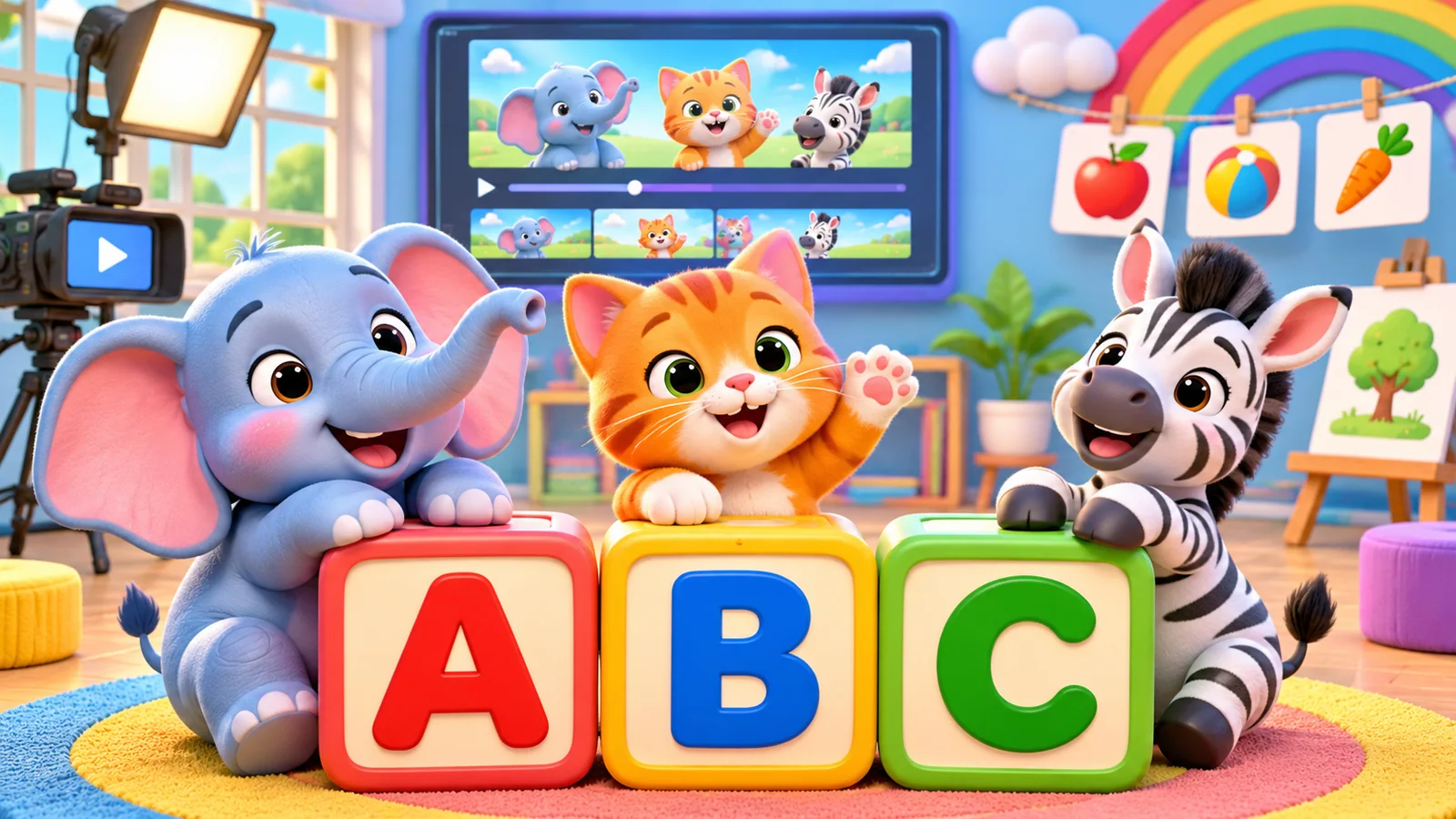
Artificial intelligence is making educational video creation easier for teachers, parents, and YouTube content creators. In 2026, you can create colorful alphabet animations, talking cartoon animals, educational voiceovers, and interactive ABC learning videos without professional animation skills.
Whether you want to teach children letters A to Z, introduce simple vocabulary, or create an educational YouTube channel, an AI alphabet learning video generator can help transform your ideas into engaging lessons.
Imagine a cheerful cartoon elephant introducing the letter E, a playful butterfly teaching the letter B, and a friendly zebra helping children recognize the letter Z.
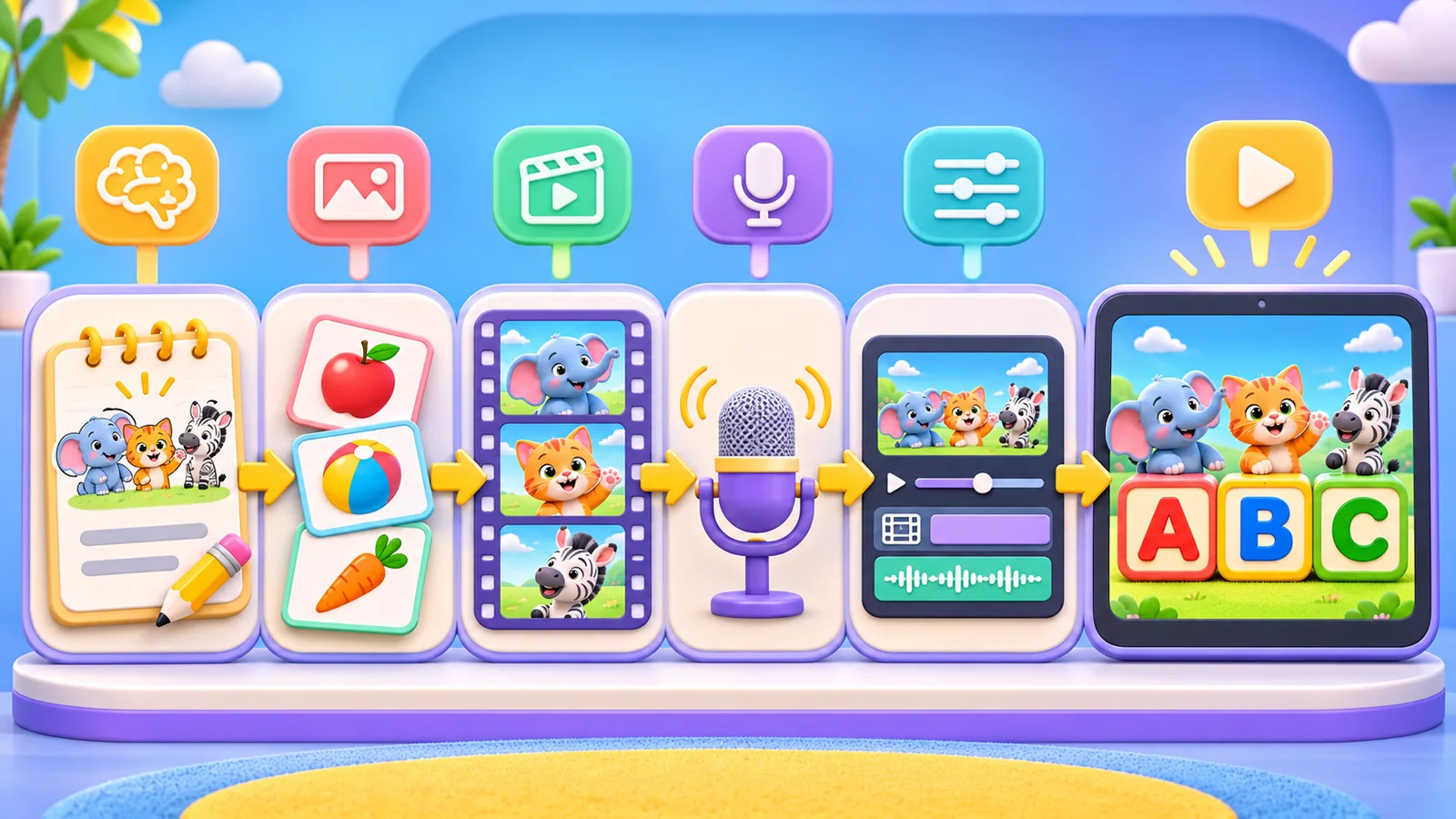
With AI tools, you can develop these characters, create animations, generate narration, and combine them into a complete alphabet learning video.
In this guide, we explore the best tools for creating ABC learning videos, explain a beginner-friendly production workflow, share 26 ready-to-use animation prompts, and discuss important YouTube publishing rules.
What Is an AI Alphabet Learning Video Generator?
An AI alphabet learning video generator is a tool or combination of tools that uses artificial intelligence to help produce educational videos about letters, sounds, and vocabulary.
Some AI tools generate cartoon illustrations from text prompts. Others animate those images, produce voiceovers, or help edit the finished video.
For example, you can enter:
"Create a cheerful cartoon elephant standing next to the letter E in a colorful preschool classroom."
An image generator can create the illustration. You can then use animation software to make the elephant wave, blink, or move gently.
A voiceover might say:
"E is for Elephant! E, E, Elephant!"
By combining visuals, narration, and repetition, you can create a simple learning experience for young children.
Why Create AI Alphabet Learning Videos?
Alphabet learning videos can support early literacy when they are accurate, age-appropriate, and thoughtfully designed.
1. Make Alphabet Learning Engaging
Colorful pictures, familiar animals, and simple movements can help capture children's attention.
2. Introduce Letter Recognition
Children can practice identifying uppercase and lowercase letters through repeated visual examples.
3. Support Vocabulary Development
Associating letters with familiar objects and animals helps introduce new words.
4. Encourage Listening and Speaking
Clear narration allows children to hear letter names and word pronunciations.
5. Create Reusable Educational Content
Teachers can use alphabet videos in classroom activities, while parents can use them to supplement learning at home.
6. Build Original Educational Video Series
Content creators can develop themed ABC videos using animals, fruits, colors, vehicles, or everyday objects.
AI can simplify production, but educators should always check that the pronunciation, spelling, and letter examples are correct.
6 Best AI Tools for Creating Alphabet Learning Videos in 2026
1. ChatGPT – Best for ABC Scripts and Cartoon Images
Website: https://chatgpt.com/
ChatGPT can help create alphabet lesson scripts, develop character descriptions, and generate prompts for individual scenes.
ChatGPT Images can also generate original illustrations and edit existing pictures.
Key Features:
- Alphabet lesson scripts.
- A-to-Z vocabulary suggestions.
- Cartoon character image generation.
- Storyboard planning.
- Educational quiz creation.
- Animation prompt writing.
Free Access: ChatGPT offers a free tier, with separate usage limits for image generation.
Best For: Teachers, educational YouTubers, and beginners.
2. Canva – Best for Animated Alphabet Graphics
Website: https://www.canva.com/
Canva provides templates, educational graphics, animation effects, text overlays, and video editing features.
You can create colorful alphabet flashcards and arrange them into an animated learning video.
Key Features:
- Educational design templates.
- Animated letters.
- Cartoon illustrations.
- Video timeline editing.
- Colorful backgrounds.
- Downloadable video projects.
Free Access: Canva has a free plan. Eligible K–12 educators can also access Canva for Education.
Best For: ABC flashcards, classroom videos, and simple animations.
3. Google Flow – Best for AI Cartoon Animation
Website: https://labs.google/flow/
Google Flow is an AI video creation platform that supports text-to-video and image-to-video workflows.
You can upload a cartoon character image and describe how it should move.
Key Features:
- Text-to-video generation.
- Frames-to-video animation.
- Visual reference workflows.
- Cinematic movement.
- Different video aspect ratios.
Free Access: Flow offers limited free generation credits, with restrictions depending on the model and account.
Best For: Animated animals, cartoon scenes, and creative educational clips.
4. Adobe Express – Best for Talking Cartoon Characters
Website: https://www.adobe.com/express/
Adobe Express includes a character animation feature that creates character movements from audio recordings.
You can select a supported cartoon character, record a voiceover, and generate a speaking animation.
Key Features:
- Audio-driven character animation.
- Built-in cartoon characters.
- Voice recording.
- Background customization.
- Video resizing.
- Animated exports.
Best For: Talking educational presenters and simple cartoon introductions.
5. Microsoft Clipchamp – Best for AI Narration
Website: https://clipchamp.com/
Microsoft Clipchamp provides AI text-to-speech features within its video editor.
You can write alphabet narration, choose a voice, and synchronize the generated speech with educational scenes.
Key Features:
- AI voiceovers.
- Multiple languages.
- Adjustable speaking speed.
- Video editing.
- Audio export.
- Text and caption tools.
Free Access: Clipchamp offers free AI text-to-speech functionality.
Best For: ABC narration, educational voiceovers, and beginner-friendly editing.
6. CapCut – Best for Editing Alphabet Videos
Website: https://www.capcut.com/
CapCut is a video editing application that can combine alphabet illustrations, animations, narration, music, and text.
It is particularly useful when assembling individual letter scenes into a complete A-to-Z video.
Key Features:
- Video timeline editing.
- Text-to-speech options.
- Animated titles.
- Subtitles.
- Transitions.
- Landscape and vertical exports.
Free Access: CapCut provides free core editing features, while some AI features and premium assets require payment.
Best For: Completing alphabet videos for YouTube and other platforms.
Comparison of AI Alphabet Video Tools
| AI Tool | Main Purpose | Best For |
|---|---|---|
| ChatGPT | Scripts and images | Alphabet content |
| Canva | Design and animation | ABC graphics |
| Google Flow | AI video generation | Cartoon animation |
| Adobe Express | Talking characters | Educational presenters |
| Clipchamp | Voiceovers and editing | ABC narration |
| CapCut | Video editing | Finished alphabet videos |
These tools can work together, but you do not need every one to create a useful educational video.
How to Create AI Alphabet Learning Videos: Step-by-Step Tutorial
Let's create a colorful alphabet video titled:
Learn ABC with Cute Animals and Fun Objects
The target audience is preschool and kindergarten children, approximately ages 3–6.
Step 1: Choose Your Educational Style
Decide whether your video will focus on letter names, beginning sounds, handwriting, or vocabulary.
For beginners, it is often better to focus on one learning objective at a time.
For our example, we will introduce uppercase and lowercase letters using animals and familiar objects.
Step 2: Write Your Alphabet Script
Use simple, repetitive narration.
For example:
"Hello, little learners! Today, we're going to learn the alphabet together!"
"A is for Apple! A, A, Apple!"
"B is for Butterfly! B, B, Butterfly!"
"C is for Cat! C, C, Cat!"
Continue through the alphabet.
When teaching phonics, distinguish the letter's name from its sound. The repeated letter-name format above is designed for letter recognition, not as a precise phonics exercise.
Step 3: Generate Cartoon Images
Create a separate illustration for each alphabet letter.
Use consistent character styles, backgrounds, colors, and lighting.
Example image prompt:
"Create a cheerful original 3D-style cartoon elephant standing in a colorful preschool classroom. Friendly expression, large ears, soft rounded features, playful educational environment, bright colors, soft lighting, suitable for young children."
For accurate letter shapes, add the alphabet text separately using Canva or another editor rather than relying entirely on AI image generation.
Step 4: Animate Your Alphabet Characters
Import the character illustrations into an animation or AI video-generation tool.
Use simple movements such as:
- An elephant waving its trunk.
- A butterfly gently flapping its wings.
- A cat blinking and smiling.
- A rabbit hopping slowly.
- A colorful kite floating through the sky.
Avoid excessive movement that distracts from the letter being taught.
Step 5: Add Alphabet Letters and Words
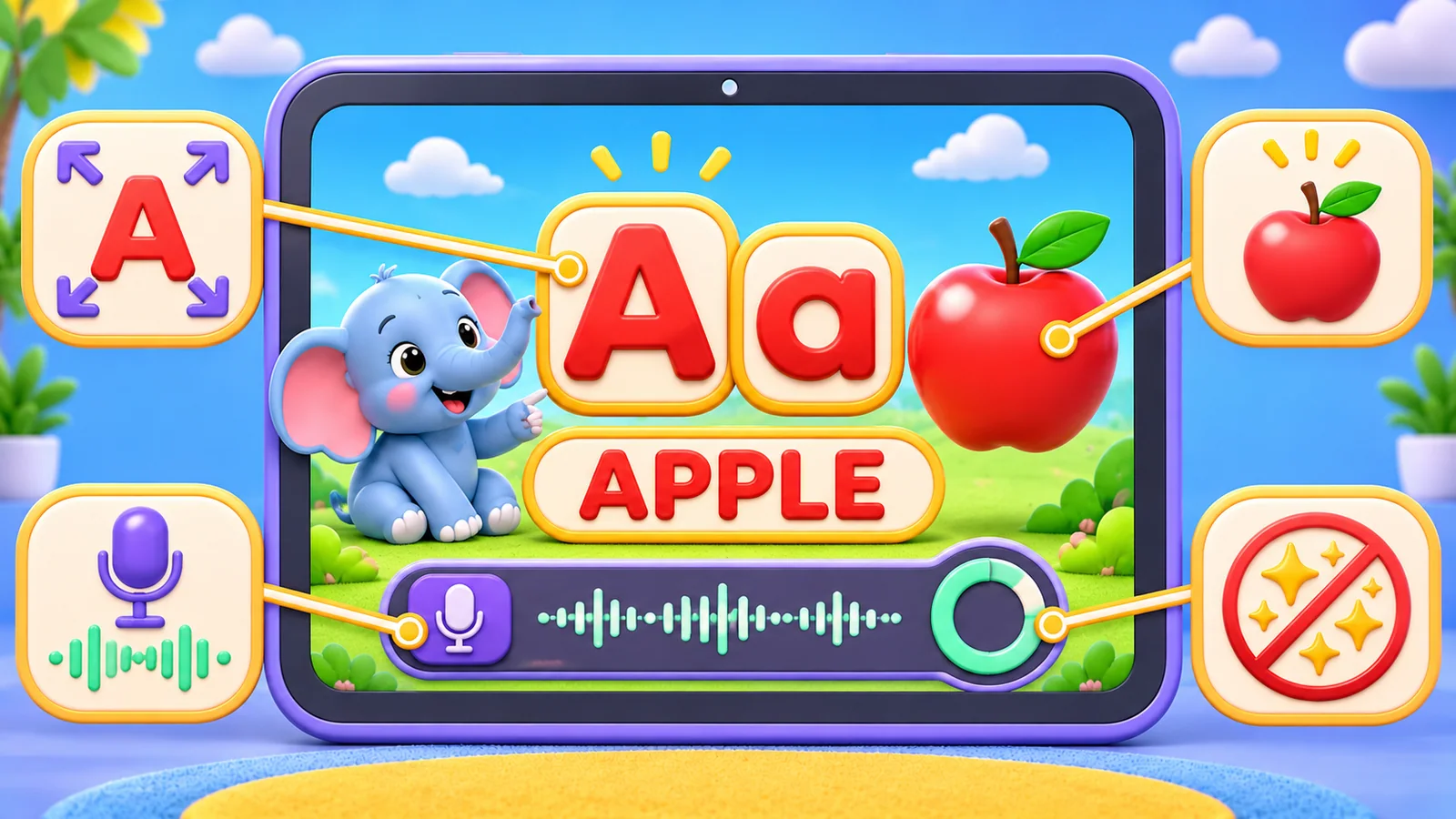
Place a large uppercase and lowercase letter on the screen.
For example:
A a – Apple
B b – Butterfly
C c – Cat
Choose clear fonts and high-contrast colors.
Keep each letter visible long enough for children to recognize it.
Step 6: Generate Educational Voiceovers
Use Clipchamp, CapCut, or your own recorded voice.
For example:
"Look! This is the letter D. D is for Dog. Can you say Dog?"
Choose a friendly voice and a moderate speaking speed.
Include short pauses so children can respond.
Step 7: Add Background Music
Choose soft, cheerful music that does not overpower the narration.
Use properly licensed music from a suitable audio library.
You can also create the video without background music if it improves the clarity of the lesson.
Step 8: Edit the Complete Video
Import all 26 scenes into CapCut or another video editor.
Arrange the letters from A to Z and check that every scene matches its narration.
Include a short introduction, a consistent visual style, and a closing review.
Step 9: Export Your Video
Use landscape 16:9 for a traditional YouTube educational video.
A vertical 9:16 format is suitable for YouTube Shorts.
A complete A-to-Z lesson may be easier to teach in a longer video, while shorter videos can focus on groups of five or six letters.
26 Ready-to-Use AI Alphabet Animation Prompts (A–Z)
Use these prompts to create your alphabet scenes.
For a consistent appearance, add this common style instruction to every prompt:
"Original colorful 3D-style children's cartoon, friendly rounded shapes, soft lighting, bright preschool environment, gentle animation, clean composition, suitable for ages 3–6."
| Letter | Word | AI Animation Prompt |
|---|---|---|
| A | Apple | A shiny red cartoon apple gently rolling across a grassy garden |
| B | Butterfly | A colorful butterfly slowly flapping its wings above flowers |
| C | Cat | A cute orange cat smiling, blinking, and gently waving one paw |
| D | Dog | A happy golden puppy wagging its tail in a sunny playground |
| E | Elephant | A friendly baby elephant slowly waving its trunk |
| F | Fish | A colorful fish swimming peacefully through clear blue water |
| G | Giraffe | A cheerful giraffe gently moving its long neck beside trees |
| H | Hat | A bright yellow cartoon hat spinning slowly above a table |
| I | Ice Cream | A colorful ice cream cone appearing with playful sparkles |
| J | Jellyfish | A friendly cartoon jellyfish floating gently underwater |
| K | Kite | A colorful diamond-shaped kite flying through a blue sky |
| L | Lion | A smiling cartoon lion waving one paw in a sunny meadow |
| M | Monkey | A playful monkey gently swinging from a tree branch |
| N | Nest | A small bird sitting beside a nest in a leafy tree |
| O | Owl | A cute owl blinking and turning its head on a branch |
| P | Penguin | A friendly penguin waddling across soft snow |
| Q | Queen | A friendly storybook queen waving in a colorful castle garden |
| R | Rabbit | A fluffy white rabbit hopping gently through flowers |
| S | Sun | A smiling cartoon sun rising above green hills |
| T | Turtle | A little turtle walking slowly beside a pond |
| U | Umbrella | A colorful umbrella opening during gentle rainfall |
| V | Violin | A beautiful cartoon violin with a bow moving gently across its strings |
| W | Whale | A friendly blue whale swimming and releasing a small water spout |
| X | X-ray | A simple child-friendly X-ray picture of a hand appearing on a screen |
| Y | Yak | A cute fluffy yak walking through a green mountain meadow |
| Z | Zebra | A friendly zebra walking through a sunny grassland |
For X, the example focuses on the letter name in "X-ray." When teaching the /ks/ sound of X, you can use a word such as "fox" and highlight the final letter instead.
Example: 60-Second ABC Learning Video Script
For a short video, focus on a small group of letters instead of attempting to cover the complete alphabet too quickly.
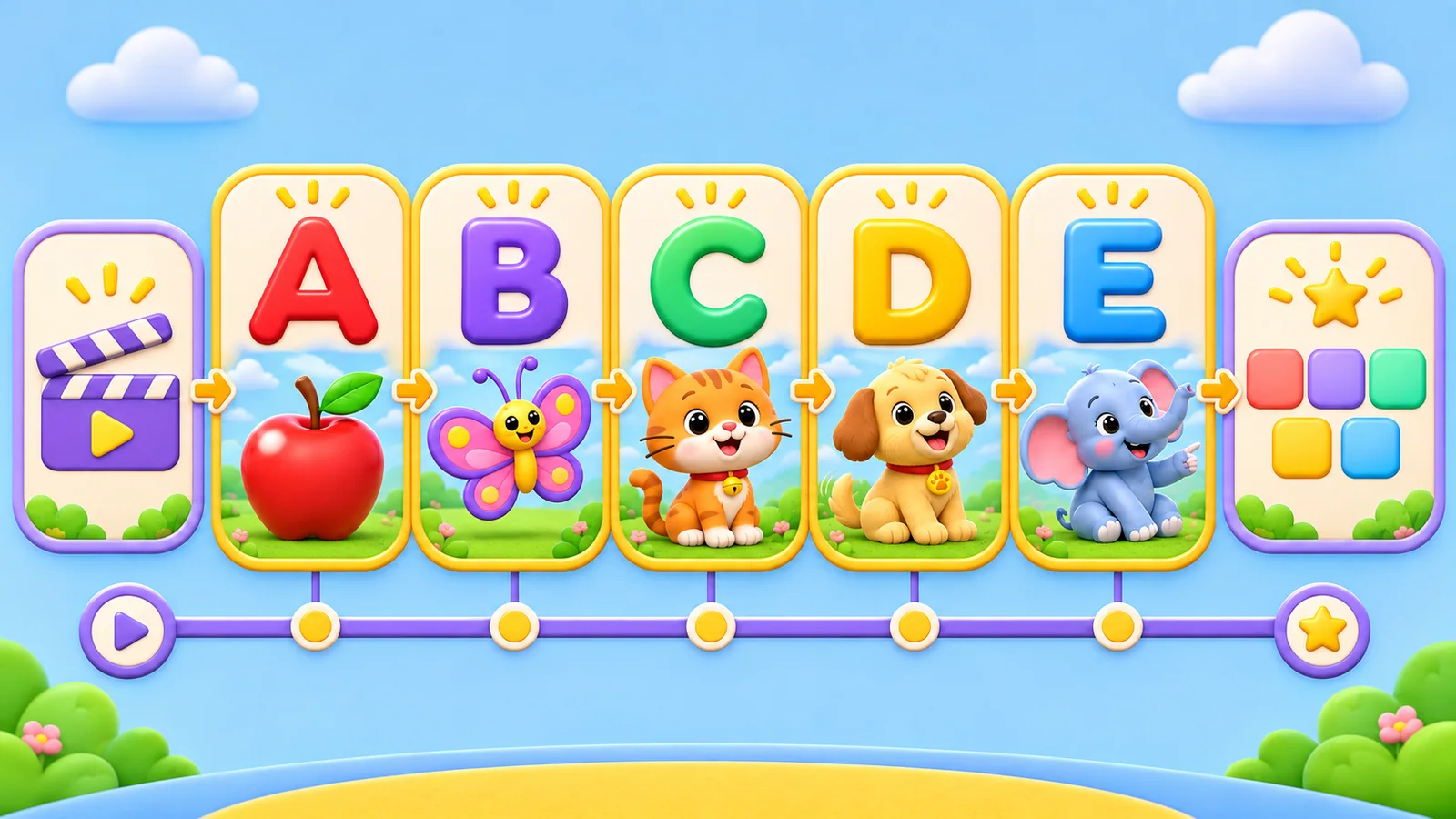
Video Title: Learn ABCDE with Cute Cartoon Animals
| Time | Scene | Narration |
|---|---|---|
| 0–5 sec | Colorful classroom | "Hello, friends! Let's learn five letters!" |
| 5–15 sec | Red apple | "A is for Apple!" |
| 15–25 sec | Butterfly | "B is for Butterfly!" |
| 25–35 sec | Orange cat | "C is for Cat!" |
| 35–45 sec | Happy dog | "D is for Dog!" |
| 45–55 sec | Baby elephant | "E is for Elephant!" |
| 55–60 sec | All five letters | "Great job! A, B, C, D, E!" |
This structure provides a simple introduction, clear letter examples, and a final review.
Tips for Making Better ABC Learning Videos
Use large, readable letters: Children should be able to distinguish the letter from the background.
Teach accurate letter sounds: Check phonics examples carefully, particularly for letters that can represent different sounds.
Repeat important words: Repetition can reinforce letter recognition and vocabulary.
Include interactive questions: Ask children to recognize a letter or identify a pictured object.
Maintain visual consistency: Use similar fonts, layouts, and animation styles throughout the video.
Avoid overwhelming effects: Rapid transitions, loud sounds, and flashing animations can distract from the lesson.
Review the illustrations: AI may generate incorrect letters, unusual objects, or extra animal limbs.
Can You Create ABC Learning Videos Completely Free?
Yes. You can create basic alphabet videos using free design, animation, voiceover, and editing features.
For example, you can build letter cards in Canva, record narration yourself or use Clipchamp, and assemble the video in a free editor.
However, advanced AI image-to-video models may require credits or subscriptions.
Always check commercial-use permissions, watermarks, and export restrictions before publishing a monetized video.
Can AI Alphabet Learning Videos Be Monetized on YouTube?
AI-assisted alphabet videos can potentially qualify for monetization if they meet YouTube's eligibility and content requirements.
However, using AI does not automatically make a video eligible.
YouTube emphasizes originality, educational quality, and meaningful viewer experiences.
Educational content should teach the promised lesson accurately rather than presenting confusing or misleading visuals.
A video series built around original characters, accurate educational explanations, clear narration, and thoughtfully planned activities is a stronger approach than publishing large numbers of nearly identical automatically generated clips.
Made for Kids Requirements
Alphabet learning videos specifically directed toward preschool children will generally be classified as Made for Kids content.
YouTube requires creators to choose the correct audience setting.
Made for Kids videos have restrictions on some features, including personalized advertising and comments.
AI Content Disclosure
Clearly fictional, non-realistic cartoon animations generally do not require YouTube's realistic synthetic-content disclosure.
However, certain realistic AI-generated or altered content may require disclosure.
Review the current requirements before publishing.
